Star’s Debug Screen 1.21+
Star’s Debug Screen Addon is a useful MCPE utility addon that adds an advanced debug HUD to Minecraft Bedrock Edition. It shows real-time coordinates, biome data, time, and world information directly on your screen, helping you play with better awareness and precision.
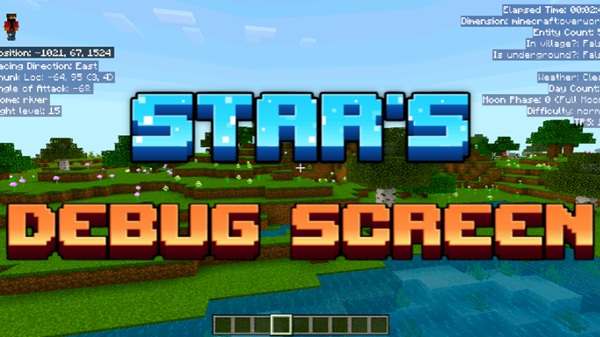
Star’s Debug Screen Addon – Advanced Debug HUD for MCPE
Star’s Debug Screen Addon is a practical utility addon that brings a clean, advanced debug HUD to Minecraft Bedrock Edition (MCPE). If you’ve ever wished Bedrock showed more useful information on screen—without commands, cluttered menus, or external tools—this addon was made for you.
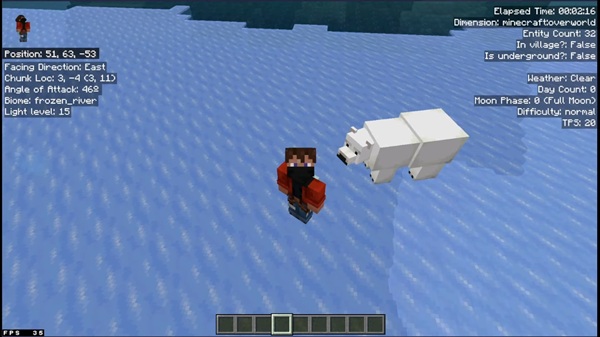
Designed for mobile, PC, and console players, Star’s Debug Screen Addon displays real-time world and player data directly on your HUD. It helps you understand what’s happening in your world while you play, build, and explore, all without changing how Minecraft works.
Overview: What This Addon Does for MCPE Players
At its core, Star’s Debug Screen Addon turns hidden game data into clear, readable on-screen information. Instead of stopping to open menus or guessing mechanics, you can see what matters as you move through your world.
This addon is especially helpful if you:
-
Build large or detailed structures
-
Play long-term survival worlds
-
Want better awareness of your surroundings
-
Enjoy learning how Bedrock mechanics work
Everything is displayed live, updates instantly, and stays out of your way.
Advanced Debug HUD Features
The real strength of Star’s Debug Screen Addon lies in its feature set. Each part of the HUD focuses on information that MCPE players actually use, presented in a way that’s easy to understand.
Player Location & Orientation
This section shows your XYZ coordinates, the direction you’re facing, and your vertical look angle.
If you’ve ever tried to line up a build or return to a specific spot, you know how useful accurate coordinates can be—especially on mobile.
Chunk & World Position Information
The addon also displays chunk coordinates and your position within that chunk.
Chunks are how Minecraft divides the world behind the scenes. Seeing this data helps you plan organized builds and understand how the world is structured.
Biome & Environment Detection
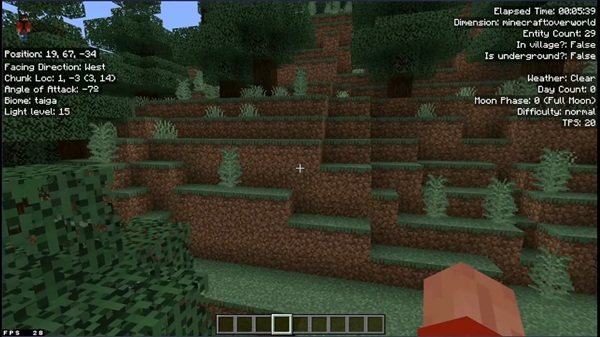
Your current biome name is shown in real time and updates the moment you cross a biome border.
This makes exploration smoother and removes guesswork when you’re looking for specific environments.
Light Level & Underground Status
You’ll see the light level of the block you’re standing on and whether the game considers you underground.
This gives you better environmental awareness and helps you understand how light and space affect your surroundings.
World Time, Day Count & Weather
The HUD shows:
-
Current in-game time
-
Total number of days passed
-
Active weather conditions
Together, these details help you track world progression and plan your play sessions more effectively.
Dimension Identification
The addon clearly identifies whether you’re in the Overworld, Nether, or End.
This is especially useful in worlds with frequent portal travel or multiple active areas.
Performance Indicators (TPS & Entity Count)
Star’s Debug Screen Addon includes TPS (Ticks Per Second) and nearby entity count as visibility metrics.
TPS is simply how fast the game is running—20 TPS means normal speed. These indicators help you understand what’s happening in your world without altering gameplay.
Village & World State Indicators
You’ll also see whether you’re inside a village boundary and other basic world-state flags.
This information is normally invisible, so having it on screen adds clarity to Bedrock mechanics.
Real-Time Updates & HUD Behavior
All displayed data updates instantly as you move, build, or explore.
There’s no need to refresh menus or run commands. The HUD stays lightweight, readable, and designed for smaller MCPE screens.
How the Debug HUD Works in MCPE
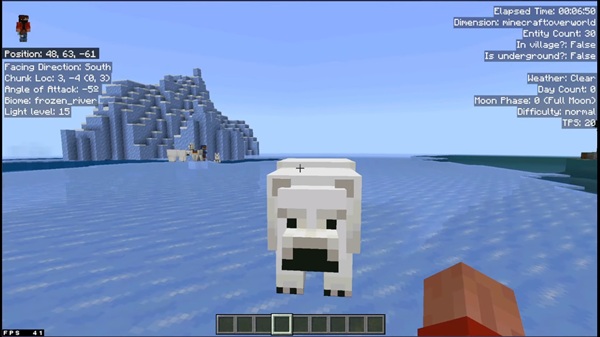
The debug HUD appears as an overlay during gameplay and runs entirely client-side. That means it reads information from your game but doesn’t change anything in your world.
The layout is carefully designed to:
-
Stay readable on mobile devices
-
Avoid blocking gameplay
-
Provide information only when you need it
Even during long sessions, the addon remains stable and responsive.
Controls & Usage by Device
Star’s Debug Screen Addon adapts to how you play MCPE:
-
Mobile (Android / iOS): Simple touch-based toggle
-
Windows Bedrock: Keyboard toggle
-
Console: Toggle through interface or video settings
The controls differ, but the displayed information stays consistent across platforms.
Why MCPE Players Use This Debug HUD
Players choose Star’s Debug Screen Addon because it:
-
Improves building accuracy
-
Makes exploration more confident
-
Reduces guesswork
-
Helps with long-term planning
-
Encourages learning through visual feedback
It adds insight, not complexity.
Compatibility & Safety Information
-
Works with modern Minecraft Bedrock / MCPE versions
-
Supports mobile, PC, and console platforms
-
Compatible with single-player, multiplayer, and Realms
-
Client-side only; no permanent world changes
-
Safe to remove at any time
Practical Tips for Best Results
-
Increase HUD scale for better mobile readability
-
Toggle the HUD only when needed
-
Avoid stacking too many UI-heavy addons
-
Use the data as guidance, not distraction
Who Should Use This Addon
Star’s Debug Screen Addon is ideal for:
-
Builders who want precision
-
Players managing long-term worlds
-
Curious players who want to understand mechanics
-
MCPE users who value clarity and structure
Very casual players may not need it, but anyone seeking insight will appreciate it.
Final Summary
Star’s Debug Screen Addon – Advanced Debug HUD for MCPE gives Bedrock players access to essential real-time information in a clean, reliable way. It improves awareness, supports better decisions, and helps you understand your Minecraft world—without changing how the game plays.
If you enjoy building smarter, exploring with confidence, and learning how MCPE works behind the scenes, this addon is a solid addition to your setup.
Installation Guide (MCPE / Bedrock Edition)
-
Download the
.mcaddonfile -
Open it to import into Minecraft
-
Create or edit a world
-
Activate the addon in Behavior Packs
-
Adjust required settings if prompted
-
Enter the world and toggle the HUD
Most issues come from skipping activation steps, so take a moment to double-check your world settings.